Supported by Photoshop
CS2/CC and higher, by Photoshop
Elements 11 and higher
Requirements: An RGB image
has to be opened
The Save Color Lookup Table command lets you save a Lookup file in 3dl, cube or csp format, which can be opened and applied with the Color Lookup filter or adjustment layer. To create such a lookup file AdjustShop either needs to compare the orginal image with a modified image or read a lookup pattern that was added to the image before it was modified.
The former approach means that you need an unmodified background layer and one or more adjustment layers, which apply an effect, in a document. You have to make sure that the "Read from Lookup Pattern (top left)" check box is deactivated, otherwise the lookup file will contain nonsense values. This method only works with 8-bit documents in Photoshop Elements, because adjustment layers are not supported for 16-bit images.
The later approach demands that you add a lookup pattern with the Image > Add Color Lookup Pattern menu item to an unmodified image and then apply filters (and maybe adjustment layers) to it. On the Color Lookup Table dialog you have to activate the "Read from Lookup Pattern (top left)" check box to make it work, otherwise a lookup file that applies no changes or only a partial effect will be produced. Creating a working lookup file is possible as long as the lookup pattern was not removed or is hidden by a layer. This method also works with 16-bit images, which means that the created lookup files will include more precise color values.
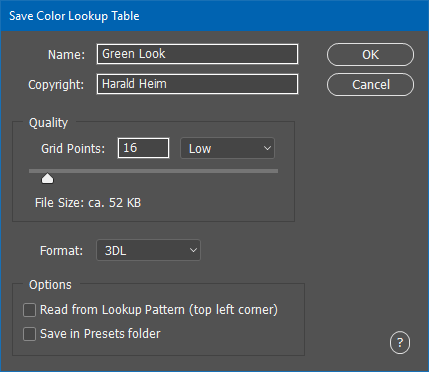
On the Color Look Table dialog you have to enter the name of the look up file and a copyright notice, e.g. your name. Next you have to decide on the number of grid points that you want to sample. The default value of 16 means that 16 * 16 * 16 = 4096 color values will be sampled, which results in a lookup file size of 50 - 100 K. The smallest possible value samples 7 * 7 * 7 = 343 color values and the highest grid point value samples 128 * 128 * 128 = 2,097,152 color values. It makes not much sense to use a value of 128, because it will produce a file of 25-60 MB size and loading this file into the Color Lookup dialog will make you wait for up to a minute until it is processed. We recommend using grid points between 16 and 32.
In the Format combo box you can choose the format of the lookup file. The 3DL format produces files that are only half as large as the CUBE and CSP files, but CUBE and CSP file contain slightly more precise color values if they were sampled from a 16-bit image. However, you will not see a visual difference.
In the Options group you can see a "Read from Lookup Pattern (top left)" check box, which was already discussed above. But please note that if this check box is activated you have to use the same grid points value and format type as on the Add Color Lookup Pattern dialog, otherwise the created lookup file will contain nonsense values. Both values are shared between both dialogs, so this should no be a problem normally.
The Save in Presets folder check box saves the lookup file in the preset folder of the Color Lookup filter and adjustment layer after clicking OK. However, you need to restart Photoshop Elements to see the saved preset on the on the 3DLUT File combo box of the Color Lookup dialog. If the Save in Presets folder check box is not activated or available and you click OK, a file dialog will appear for choosing the location where the lookup file will be saved.