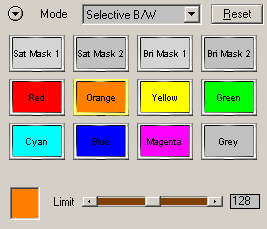
Selective B/W
The Selective B/W Mode lets
you create B/W images with a few colored areas.
Preset Icons
Clicking one of the preset
icons will activate the appropriate effect by setting the sliders below to certain
values. The same presets can also be found in Photography Mode, B/W Quick Mode
and Expert Mode. For more information about the presets, please read the Local
Presets page.
Sliders
Depending on the preset icon that you select different controls will be displayed. If you select one of the presets from the first row, you will see a Tone and Limit slider. The Tone slider lets you select the tonal value around which the mask is created. In the case of the two Sat Mask presets, the Tone slider represents the saturation value. A low slider value targets image areas that are black, gray and white whereas a high value is aimed at image areas with intense colors. In the case of the two Bri Mask presets the Tone slider lets you select the brightness value. A low value means that dark image areas are used for the mask and a high value selects bright image areas.
If you activate one of the presets from the second and third row you will see a color box. The color that is displayed in the color box will be used for creating the mask. To choose this color you can click on the preview or click on the color box itself. For example, if you want to bring back the original color of the purple image areas, click on one of purple image areas in the preview.
The Limit slider works the same for all preset icons. It lets you adjust the size of the color image areas by expanding or shrinking the mask.
Hyper Links
The two hyper links at the bottom let you switch to Photograph Mode or to Expert Mode. Alternatively you can also use the Mode combo box at the top for doing that.