ElementsXXL adds two menu items to the View menu of Photoshop Elements for dealing with printing and video format issues.
Requirements: An image has to be opened.
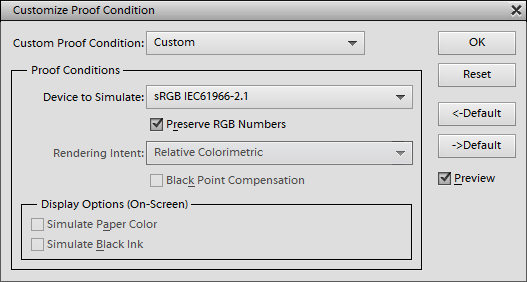
The Proof Color option simulates how the image looks on other devices, e.g. when printed with a certain printer or printing method. This way you can detect and correct color problems before they actually occur. This feature basically converts the color values from the color space of the image to the color space of the selected device when displaying the image on your monitor screen.
The Device to Simulate combo box has the current color profile selected, which is usually sRGB, by default. To view your image with another profile, select another item from this combo box. Best keep the Preserve RGB Numbers check box activated, unless you have some color management knowledge.
To restore the original proof settings simply select the menu item again and press OK.
Requirements: An image has to be opened.
The pixel aspect ratio of the computer image is 1.0, so the width and height of a pixel are the same and form a square. However, there are some video formats that do not use square pixels. Here are examples of such formats and their aspect ratio:
|
D1/DV
NTSC
|
0.91 |
|
D1/DV
PAL
|
1.09 |
|
D1/DVNTSC
Widescreen
|
1.21 |
|
HDV
1080/DVPRO HD 720
|
1.33 |
|
D1/DV
PAL Widescreen
|
1.46 |
|
DVCPRO
HD 1080
|
1.5 |
|
Anamorphic
2:1
|
2.0 |
The Custom Pixel Aspect
Ratio menu item lets you set a special pixel ratio in case you edit frames
of such video files. To
restore the pixel
aspect ration simply select the menu item again and press OK.
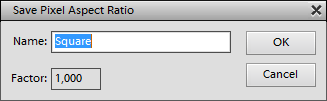
In Photoshop the image is displayed stretched according to this ratio. Unfortunately in Photoshop Elements this setting only seems to influence the shape of the brush tip of various tools.