ElementsXXL adds four new menu items and one sub menu to the Select menu of Photoshop Elements that make it easier to work with selections.
Requirements: An imagte needs to be open. A selection is recommended.
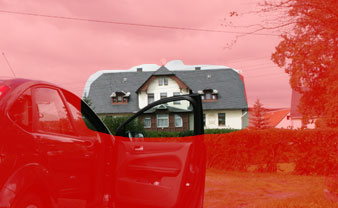
This menu item activates and deactivates the Quick Mask Mode. In Quick Mask Mode a selection is transformed into a mask, which is visualized by a red color overlay. This mask can be edited like an image with all available tools and filters. Even selections can be used to modify the mask.
|
|
|
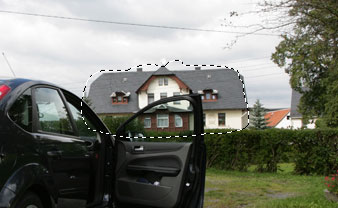
| 1. After drawing a selection with the Lasso tool. | 2. After switching to Quick Mask Mode. | |
|
|
|
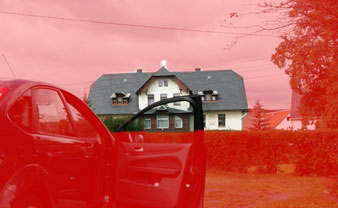
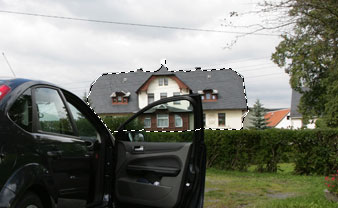
| 3. With the brush tool the outlines of the object were masked precisely. | 4. After exiting Quick Mask Mode. The mask was converted back to a selection. |
When you are finished with
editing the mask, you can convert it back to a selection by clicking the
"Edit in
Quick
Mask Mode" menu item again.
When using the Quick Mask Mode feature on a 16-bit/channel image, a new document called "Quick Mask Mode" is opened. This allows you to use all tools and filters on the mask. When ending Quick Mask Mode, the edited mask is transferred to the original document.
Requirements: "Edit in Quick Mask Mode" has to be activated beforehand
After the Edit in Quick Mask Mode menu item was activated, you can adjust the appearance of the quick mask.
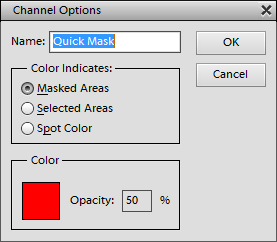
The Masked Areas radio button displays the areas outside of the selection colored. The Selected Areas option colorizes the areas of the selection. The Spot Color option makes the color go away completely, so better not use it.
Click on the color box to change the color of the mask overlay. The Opacity edit box lets you adjust the opacity of the colored overlay.
Requirements: An image needs to be open
This command creates a selection based on the layer mask, transparency of the layer (the Layer Opacity menu item), the luminosity or one of the color channels of the image.
Using the red, green or blue image channel or the luminosity as a selection can be useful for masking. If you choose one of these options and create a layer mask, the appropriate channel will be copied into the layer mask.
Creating a selection from the layer mask can also be done by holding down the Cmd key and clicking on the layer mask in the Layers panel, but the other four items of the Selection From sub menu cannot be performed otherwise.