
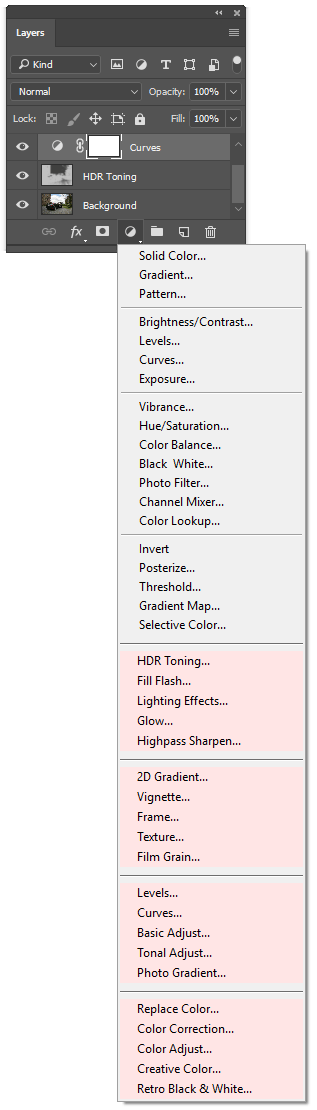
The fill and adjustment layers of AdjustShop can also be added and edited from the Layers panel.
However, if ElementsXXL 6.03 or earlier is installed together with AdjustShop in Photoshop Elements, you must use the menu items from the "Layer > New Fill / Adjustment Layer" submenu instead. So we recommend upgrading to ElementsXXL 6.04 or higher.
|
|
Fill / Adjustment Layer Icon Menu
Instead of using the New Fill Layer and New Adjustment Layer sub menus of the Layer menu you can also add AdjustShop's fill and adjustment layer by clicking the appropriate icon on the Layers panel and choosing a menu item from the appearing menu.
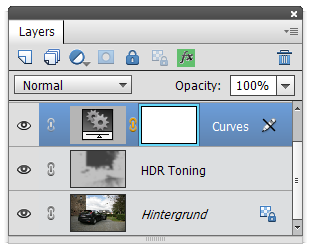
Layer Thumbnail
Double clicking the thumbnail of a fill or adjustment layer that was added by AdjustShop makes a dialog with the approppriate settings appear. This way you can edit and adjust the settings.
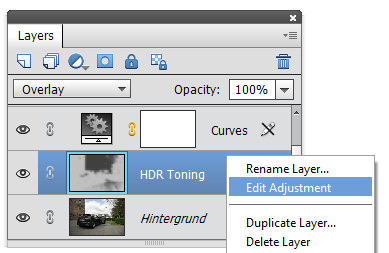
Layer Context Menu
You can also edit a fill or adjustment layer of AdjustShop by right clicking on the layer and choosing "Edit Adjustment". Alternatively you can find the same menu item on the "Layer > New Fill/Adjustment Layer" sub menus.