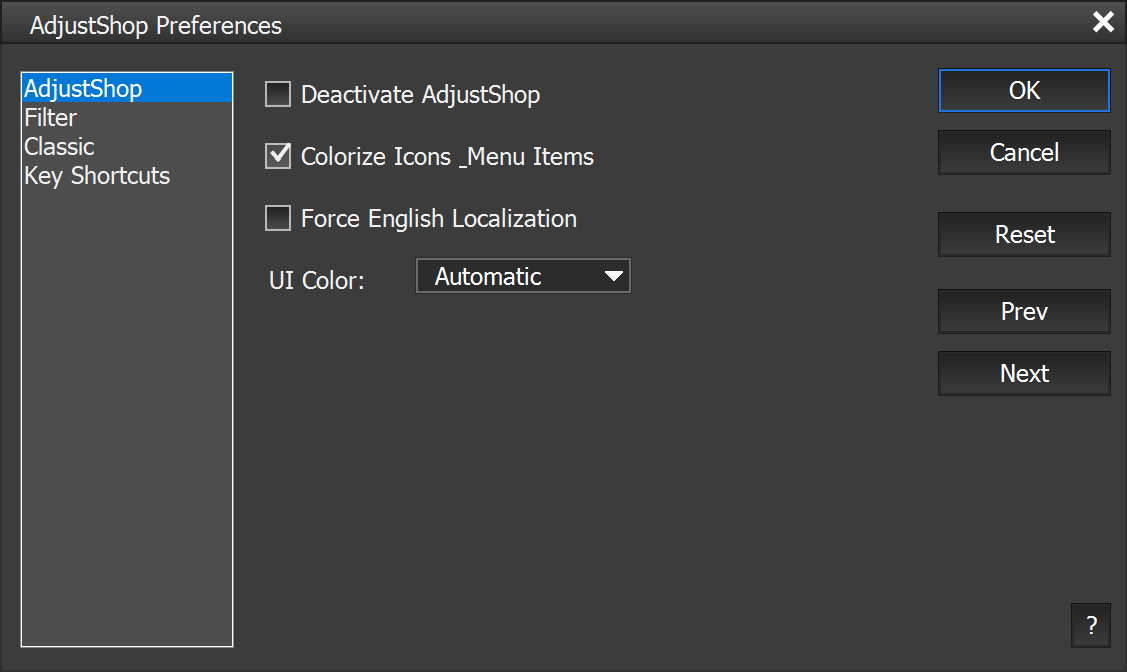
AdjustShop adds several menu items to the Edit Menu of Photoshop and Photoshop (Elements), including an item for changing the AdjustShop preferences.
Supported by Photoshop
CS2 to CC 2017, Photoshop Elements 11 and higher, not needed in Photoshop
CC 2018 and higher
Requirements: One ore more layer has to be selected in the Layers panel
AdjustShop lets you copy and paste more one or more layers within a document or between documents. To copy more than one layer, please select them in the Layers panel by holding down the Ctrl or Shift key while clicking on them. Then select this menu command or use the Ctrl + C keys. To paste the copied layer(s), please use the paste command. Do not delete the copied layers before pasting, otherwise pasting will not work.
Supported by Photoshop
CS2 to CC 2017, Photoshop Elements 11 and higher, not needed in Photoshop
CC 2018 and higher
Requirements: One ore more layer has to be selected in the Layers panel
AdjustShop lets you copy and paste more one or more layers within a document or between documents. After you copied one or more layers with the Copy command, you can switch to another document to paste the layers there. You can either paste with this menu command or with the Ctrl + V key. Do not delete the copied layers (in the source document where you triggered the Copy command) before pasting, otherwise pasting will not work.
Supported by Photoshop
CS2/CC and higher, by Photoshop Elements 11 and higher
Requirements: None
If you click on this menu item on the Preferences sub menu, a dialog window is opened that lets you change the settings of AdjustShop. You can switch between different preferences groups by using the list on the right or by clicking the Prev and Next buttons. To set all options to the original default values click the Reset button. Press OK to apply the changes on this dialog or Cancel to discard them.
AdjustShop
The Deactivate AdjustShop check box lets you deactivate AdjustShop without installing it. You have to restart Photoshop (Elements) to make the deactivation work. To reactivate AdjustShop again please choose File > Automation Tools > AdjustShop from the menu.
When running AdjustShop for the first time, all menu items, icons and buttons of AdjustShop have a blue background, so that you immediately see which features were added. To retain this highlighting activate the Colorize Icons & Menu Items check box. Once you know AdjustShop well enough, you can deactivate it again.
If you are using a non-English version of Photoshop (Elements) and would like to see the menu items and dialogs of AdjustShop in English language, you can activate the Force English Localization check box. You have to restart Photoshop (Elements) for this feature to start or stop working. This feature can be helpful if you want to look up certain things in the English manual or if the localization to your language does not work perfectly.
The UI Color option lets you choose the skin color of all AdjustShop dialogs in Photoshop Elements. This has no effect on the UI and dialogs of Photoshop Elements itself. In Photoshop this check box does not work, because AdjustShop automatically adjusts itself to the UI brightness of Photoshop. The default Automatic option automatically changes the AdjustShop UI color between bright and dark, if you switch it in the Photoshop Elements 2024 preferences. But Photoshop Elements 2024 needs to be restarted twice until AdjustShop notices the new UI color.
Filter
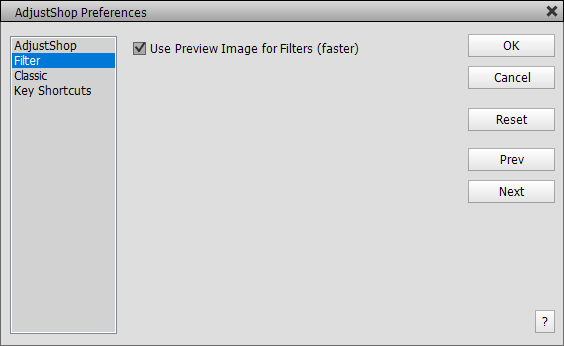
The Filter page offers options concerning filters and smart filters. The Use Preview Image for the Filters (faster) check box crops or sizes down the image in order to speed up the effect rendering while using a filter dialog. After clicking the OK button, the preview image is removed and the effect is applied to the original larger image. This option works with filters and fill layers (except the Anitalias filter).
Classic
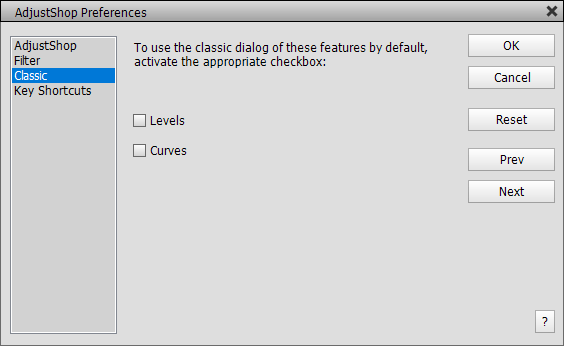
The Classic page lets you
deactivate some dialogs of AdjustShop, which normally replace the native
dialogs
of Photoshop (Elements). AdjustShop replaces these classic dialogs in order
to provide more options or avoid problems, so it is usually not a good idea
to
activate these check boxes. But they are provided here if you nevertheless
prefer the classic dialog.
Key Shortcuts
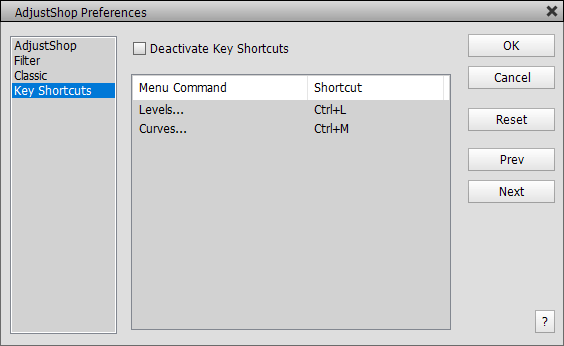
The Deactivate Key Shortcuts check box deactivates (and activates again) the key shortcuts of AdjustShop. All available key shortcuts are shown in the list below.