Step
By Step Guide
On the following pages are
tutorials for the most important image processing tasks in FocalBlade. They
help you get an idea how and in which sequence to adjust the controls in FocalBlade.
These instructions offer you guidance if you do not know FocalBlade that well.
Once you are more experienced you can develop your own style of using FocalBlade.
One Pass
Sharpening
Quick Approach
1. Please resize the image
to its final size before using FocalBlade.
2. Keep the preview zoom
at 100% to see the sharpening effect precisely.
3. Choose "Easy Mode"
from the Mode combo box if it isn't already activated.
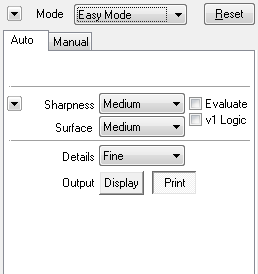
4. Click the Reset button
to set the default values.
5. Click on the Print
button if you intend to print the image or the Display button if you want
to display the image on a monitor, TV or projector.
6. If you are not satisfied,
try other settings for the three combo boxes. Click on the arrow-down button
to display a menu with settings for certain types of photos.
7. Click OK (or Save As)
to apply the correction.
Advanced Approach
1. Please resize the photo
to its final size before using FocalBlade.

2. Keep the preview zoom
at 100% to see the sharpening effect precisely. If the image is larger than
the preview, activate the hand tool, click on the preview and drag to make
the part of the image visible that contains the most important object.
3. Choose "Advanced
Mode" from the Mode combo box if it hasn't already been activated. Make
sure that "One-Pass Classic" is selected in the Workflow combo box.
4. Click the Reset button
to set the default values.
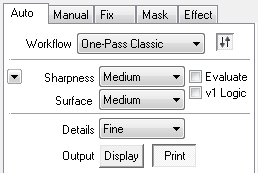
5. Click on the Print
button if you intend to print the image or the Display button if you want
to display the image on a monitor, TV or projector.
6. Try different settings
for the three Auto combo boxes until you are satisfied.
7. For more subtle changes
please use the controls of the Manual tab sheet.
8. Click OK (or Save As)
to apply the correction.
Expert Approach
1. Please resize the photo
to its final size before using FocalBlade.
2. Keep the preview zoom
at 100% to see the sharpening effect precisely. If the image is larger than
the preview, activate the hand tool, click on the preview and drag to make
the part of the image visible that contains the most important object.
3. Choose "Advanced
Mode" from the Mode combo box if it hasn't already been activated. Make
sure that "One-Pass Pro" is selected in the Workflow combo box.
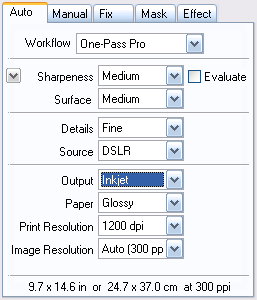
4. Click the Reset button
to set the default values.
5. Select the correct
settings for the Source, Output and other combo boxes. Choose the values that
are closest if the exact values are not available.

6. For getting the most
important part of the image optimally sharpened you can do the following:
Activate the Marquee tool and draw a sample area in the preview that encloses
an essential section of the image. You can remove the sample area again by
right clicking on the Reset button and choosing "Remove Sample Area"
from the context menu.
7. Try different settings
for the three Auto combo boxes until you are satisfied.

8. To make more subtle
changes please use the controls of the Manual tab sheet.

9. For controlling which
areas of the photo will be sharpened with the Edges or Surface settings you
can use the Edge Mask sliders on the Mask tab sheet. The N or P option lets
you see which areas correspond with the edges and which are defined as surface.
10. Click OK (or Save
As) to apply the effect.
Split View Approach
1. Please resize the photo
to its final size before using FocalBlade.
2. Keep the preview zoom
at 100% to see the sharpening effect precisely.
3. Click the Reset Button
to set the default values.

4. Choose "Sharpen
Vert." or "Sharpen Horiz." from the Split View combo box. Activating
the Multi check box usually lets you better compare the different Split View
areas.
5. Make sure the hand
tool is activated and drag the preview to center the most important image
area in the preview.
6. Try different settings
of the combo boxes on the Auto tab sheet and adjust the controls on the Manual
tab sheet until you are satisfied. With every change the Split View areas
are updated and reveal the new setting. The current settings are displayed
in the middle area while the other areas display -/+ 50% variations of it.
7. If the middle section
is fine, deactivate the Split View mode by choosing "Split View Off".
Otherwise hold down the Shift key and click on one of the other Split View
areas to select its effect.
8. Click OK (or Save As)
to apply the correction.
Two Pass
Sharpening
First Pass
1. Apply noise, lens and
perspective corrections if necessary and then run FocalBlade.
2. Keep the preview zoom
at 100% to see the sharpening effect precisely. If the image is larger than
the preview, activate the hand tool, click on the preview and drag to make
the part of the image visible that contains the most important object.
3. Choose "Advanced
Mode" from the Mode combo box if it hasn't already been activated. Make
sure that "Two-Pass: Capture" is selected in the Workflow combo
box.
4. Click the Reset button
to set the default values.

5. Select an item from
the Source combo box to let FocalBlade know how the image was captured.
6. Try different settings
of the other combo boxes until you are satisfied. Keep in mind that a second
pass will sharpen the image even more, so do not overdo it.
7. For more subtle adjustments
please use the controls on the other tab sheets.
8. Click OK to apply the
sharpening.
Second Pass
1. Resize your image to
the final output size and then run FocalBlade.
2. Choose "Advanced
Mode" from the Mode combo box. Make sure that "Two-Pass: Output"
is selected in the Workflow combo box.

3. Select the item from
the Output combo box that resembles your output process. Then choose the appropriate
options from the other combo boxes.
4. For more subtle adjustments
please use the controls on the other tab sheets.
5. Click OK to apply the
correction.
Three
Pass Sharpening
First Pass
1. Apply noise, lens and
perspective corrections if necessary and then run FocalBlade.
2. Keep the preview zoom
at 100% to see the sharpening effect precisely. If the image is larger than
the preview, activate the hand tool, click on the preview and drag to make
the part of the image visible that contains the most important object.
3. Choose "Advanced
Mode" from the Mode combo box if it hasn't already been activated. Make
sure that "Three-Pass: Capture" is selected in the Workflow combo
box.
4. Click the Reset button
to set the default values.

5. Select an item from
the Source combo box to let FocalBlade know how the image was captured.
6. Try different settings
for the other combo boxes until you are satisfied. Keep in mind that two more
passes will sharpen the image even more..
7. For more subtle adjustments
please use the controls on the other tab sheets.
8. Click OK to apply the
sharpening.
Second Pass
1. Have a close look at
your image. Is there an area which you would like to sharpen more than the
rest of the image or which you would like to blur a bit. If there is, create
a selection around it and run FocalBlade. Otherwise run FocalBlade on the
full image.
2. Choose "Advanced
Mode" from the Mode combo box. Make sure that "Three-Pass: Creative"
is selected in the Workflow combo box.

3. Select an sharpening
or blur effect from the Effect combo box. Then adjust the effect with the
other combo boxes. The Mask combo box can be used to remove the effect in
certain image areas in case you did not create a selection before running
FocalBlade.
4. For more adjustments
use the controls on the other tab sheets. Remember that one final sharpening
pass is still coming.
5. Click OK to apply the
correction.
Third Pass
1. Resize your image to
the final output size and then run FocalBlade.
2. Choose "Advanced
Mode" from the Mode combo box. Make sure that "Three-Pass: Output"
is selected in the Workflow combo box.

3. Select the item that
resembles your output process from the Output combo box. Then choose the appropriate
setting from the other combo boxes.
4. For more adjustments
use the controls on the other tab sheets.
5. Click OK to apply the
correction.
Sharpening
with a Brush
... in Photoshop
1.
Open your image in Photoshop.
2. Choose Layer > Duplicate
Layer or alternatively select "Duplicate Layer" from the menu of
the Layer panel.
3. Run Filter > PhotoWiz
> FocalBlade and apply its effect to the image by pressing the OK button.
4. If you want to remove
the sharpening effect from a few image areas, please choose Layer > (Add)
Layer Mask > Reveal All. Alternatively,
if you want to brush the sharpening effect only on a few image areas, please
select Layer > (Add) Layer Mask > Hide All.
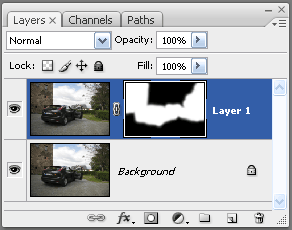
Here you can see that the FocalBlade sharpening effect was applied to
a duplicated new layer (Layer 1) . By using a layer mask the effect was not
applied to the sky and ground (black mask areas) but to the other areas (white
mask areas). The white mask areas were created by painting with a white brush.
5. Select the brush
tool and choose appropriate brush size and options.
6. To remove the sharpness
effect from some areas of the image please choose a black color in the foreground
color box of Photoshop's tool panel. But if you have chosen Layer > (Add)
Layer Mask > Hide All in step 4, please choose a white color in the foreground
color box of Photoshop's tool panel.
7. Brush over the image
areas where you want the sharpness effect to be removed or revealed.
8. When you are done,
you can flatten the image with Layer > Flatten Image.
... in Paint Shop Pro
1.
Open your image in Paint Shop Pro.
2. Choose Layers >
Duplicate which will add a new layer called "Copy of Background"
in the Layer panel.
3. Run Effects > Plugins
> PhotoWiz > FocalBlade and apply its effect to the image by pressing
the OK button.
4. If you want to remove
the sharpening effect from a few image areas, please choose Layers > New
Mask Layer > Show All. Alternatively, if you want to brush the sharpening
effect only onto a few image areas, please select Layers > New Mask Layer
> Hide All.
5. Select the brush tool
and choose appropriate brush size and options.
6. To remove the sharpness
effect from some areas of the image please choose a black color in the foreground
color box. But if you have choose Layers > New Mask Layer > Hide All
in step 4, please choose a white color in the foreground color box.
7. Brush over the image
areas where you want the sharpness effect to be removed or revealed.
8. When you are done,
you can flatten the image with Layers > Merge > Merge All (Flatten).
.. in other applications
The procedure works similar
in other applications if they have a layer mask feature.
Deblurring
Photos
1. Please resize the image
to its final size before using FocalBlade.
2. Switch to the one of
the following modes: Unsharp Mask, Classic Mode or Advanced Mode.
3. Try various settings
for the Sharpen and Radius slider(s) on the Manual tab sheet until you are
satisfied. If the image is too blurry, you will only be able to make it somewhat
less blurry, but not fully sharp again.
4. Click on OK (or Save
As) to apply the correction.
Fixing
Oversharpened Photos
1. Please resize the image
to its final size before using FocalBlade.
2. Choose "Advanced
Mode".
3. Set the Sharpen sliders
of the Edges and Surface groups on the Manual tab sheet to zero.
4. Increase the value
of the Soften slider of the Surface group until you are satisfied. Also try
different Radius values.
5. To soften the edges
as well, decrease the value of the Edge Mask > Intensity slider on the
Mask tab sheet. Try activating the Median check box if you are still not satisfied.
6. Click on OK (or Save
As) to apply the correction.
Creating
a Glow Effect
1. Switch to Special Effect
mode or to Advanced Mode. In Advanced Mode set both Sharpen sliders on the
Manual tab sheet to zero if you don't want additional sharpening to be applied.

2. Adjust the Glow slider
to your preferred value and change the glow color by clicking on the color
box located at the left of the Glow slider.
3. To change the look
of the glow effect you can use the Edge Mask sliders (on the Mask tab sheet).
4. Click on OK (or Save
As) to apply the correction.
Creating
a Soft Focus Effect
1. Switch to Soft Blur
mode or to Advanced Mode. In Advanced Mode set both Sharpen sliders (or at
least the one in the Surface group) on the Manual tab sheet to zero if you
don't want additional sharpening to be applied.
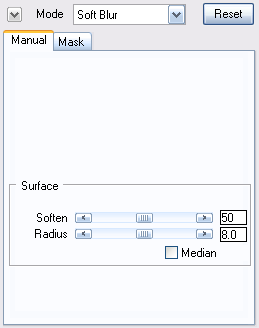
2. Set the Soften slider
to a value between 50 and 75 and set the Radius slider of the Surface group
to a value of around 8.0.
3. Try activating the
Median check box.
4. You can additionally
use the Edge Mask sliders on the Mask tab sheet to selectively soften or keep
certain image areas sharp. Additionally use the Highlights and Shadows sliders
to reduce the effect in the highlights and shadows.
5. In Advanced Mode use
the Grain controls on the Effect tab sheet to add a bit of grain. Apply a
Glow effect as described above.
4. Click on OK (or Save
As) to apply the correction.